
Register the Duo Mobile App
Follow these steps to set up Duo Mobile for multi-factor authentication (MFA) on your Bucks account.
- Sign in to Duo on your mobile device. Enter your Bucks email address and password.
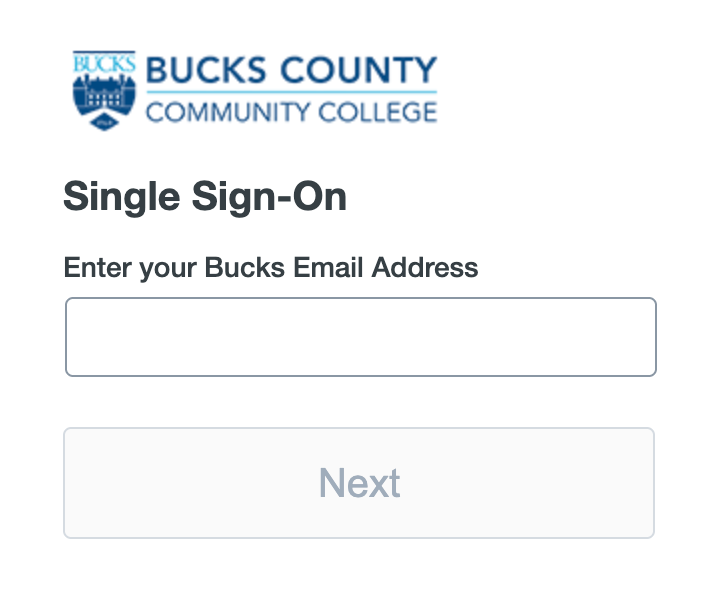
- Select Get Started.
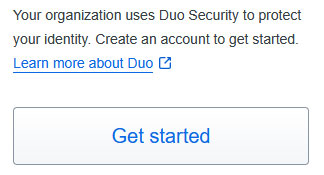
- Select Get Started.
- Select Duo Mobile as your authentication method.

- Enter your current phone number, confirm, and select Continue.
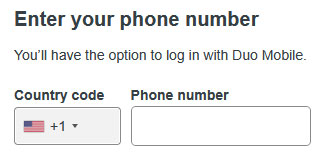
- Enter your current phone number, confirm, and select Continue.
- Download Duo Mobile app on your phone, then select Next.
- Scan the QR code. Open your phone’s camera and scan the QR code on your computer.
- You can also open the Duo Mobile app, select + Add and then select Use QR code.
- You may be asked to allow Duo Mobile to access your camera.
- Add your Bucks account to the Duo Mobile app.
- You can give the account a unique name or keep the default name.
- Select Continue.
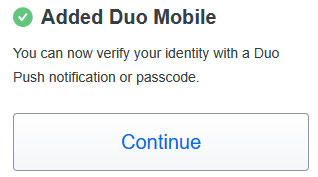
- Finish setting up your device. Select I don’t want to add more devices. Then select Log in with Duo.

- Verify your login. A number will appear on your screen. You’ll also receive a notification from Duo Mobile on your phone.
- Open the notification or the Duo Mobile app and enter the number shown on your screen.
- Important: Before approving a login, check the location and time shown in the Duo Mobile notification. Make sure they match your login attempt. If you don’t recognize the login, do not approve it.
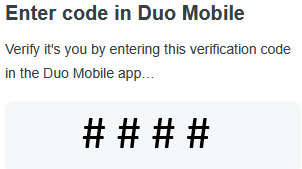
- Complete setup. After you successfully verify your login, you’ll be prompted to save your device for future logins. Follow the prompt to complete your Duo Mobile setup.